As I'm reading through all the ISTE13 recaps, I started thinking about how it might be cool to create a six word story about my ISTE13 experience. As I thought about what mine might entail, I wondered what others might look like. And then it hit me. We should make a collaborative video of six word stories all put together into an ISTE13 compilation!
So, here is the deal. The more people we get to add to this, the more fun it will be. Spread the word. I first heard about the idea of a six word story from Dean Shareski (@shareski). And I think it is a great project for any teacher to use in their classroom. So, this will be good practice for you. :)
Tell the story of your ISTE13 experience with one image and just six words. It can be an image that you took at the conference, or one that someone else took that helps tell your story. Look here for some ideas from Ben Grey's (@bengrey) wiki: http://bengrey.wikispaces.com/6+Word+Story+Project
Use a photo editor (pixlr is a good free one for Chrome and Fotolr used to be pretty good on the iPad) to add the text of the story to your image. You can publish your image to a photo sharing site like Flickr and then add it to our Google Presentation by the URL. Or you can upload a copy of the image directly to the Google Presentation.
Add your story to the collaborative Google Presentation here:
http://goo.gl/cVHUS
Be sure to include your name, where you are from and twitter/g+ account info in the notes section of your slide.
I will download the slideshow and create a video out of all of the stories. And then in two weeks we will have a Google Hangout to watch the end result. Sound good? :)
Showing posts with label Google. Show all posts
Friday, June 28, 2013
Thursday, February 21, 2013
Thoughts on the Google Pixel
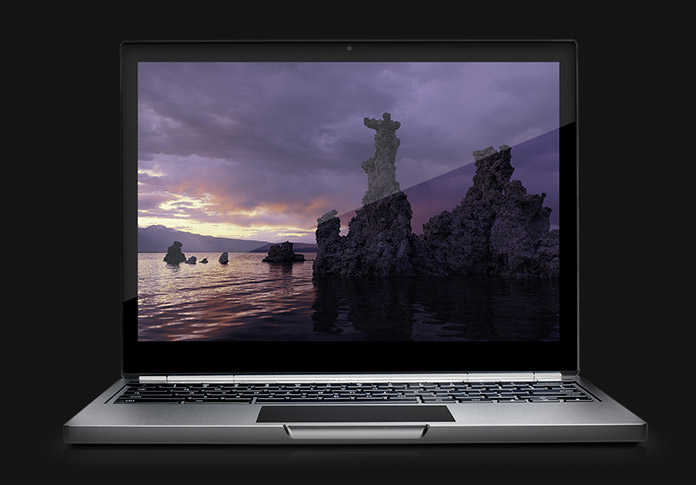
| Google Pixel |
When I was first reading about it, the first thing I focused in on was the touch integration announcement. ChromeOS just added touch integration! Seriously! No, there isn't a full keyboard, but the touch integration is there with gestures. This paves the way for a whole new set of devices running ChromeOS! And with the Chromebook partners picking up speed, there is a lot of potential here.
Combine that thought with the physical specifications and design of the Pixel. It is almost so impressive it is scary. Apple's prized possession of late has been their screens. First on the iPhone and iPad screens. With the inclusion of the Retina display on the MacBooks this year they continued that trend. However, Google just took Apple's lunch money and put them on notice with the Pixel display!
The Google Pixel has a 12.85" screen running at 2560 x1700. It has a Intel i5 processor (1.8ghz), and 4GB of ram. Throw in a ChromeOS with touch integration and you have a pretty major statement. Google just proved they can package the same high quality hardware (designed with software in mind), with all the advantages of a web based ChromeOS.
Boom!
Imagine where we go from here... :)
Monday, July 11, 2011
New look and feel for Google products #googleapps
Hello Apps EDU Administrators,
Google is rolling out a new look and feel (http://googleblog.blogspot.com/2011/06/evolving-google-design-and-experience.html ) across Google’s products, and these interface changes will also be released to Google Apps services, such as Gmail, Calendar, and Docs, over the next months. Following is information about the new rollout and steps to take for your account.
How will this affect my Google Apps users?
We’ll release interface update an ongoing basis initially to consumers, with some services offering an opt-in/opt-out option for Google Apps users, before the changes become permanent for all users. For example, you can start to preview the new Gmail look this week.
The rollout will follow the Google Apps Release Track process (http://whatsnew.googleapps.com/release-tracks ). Administrators can choose the Rapid Release track to move to the new look at the roughly same time as consumers. Or they can choose the Scheduled Release track to receive changes later and take more time to prepare for the transition.
What do I need to do now?
See what’s new: The first updates to Gmail (http://gmailblog.blogspot.com/2011/06/preview-of-gmails-new-look.html ) and Calendar (http://www.google.com/support/calendar/bin/answer.py?answer=1351806 ) were released this week. We encourage you preview the new look over the next few weeks to gain familiarity with upcoming changes. See the What’s New (http://whatsnew.googleapps.com/new-look ) site for instructions.
Review your current release track settings. Administrators who choose the Scheduled Release track will have more time after the Rapid Release date before changes become available to their users. Depending on your needs you may want to update the release track setting your Google Apps Control panel. (http://whatsnew.googleapps.com/choose-release-track )
How can I keep up to date?
On the Google Apps What’s New site (http://whatsnew.googleapps.com/new-look ), you’ll find information about the release process, and instructions on how to try the new designs for Gmail and Calendar. We’ll keep this site up to date with information on the new look, how to give feedback, and resources for you and your users.
Sincerely,
The Google Apps Team
You have received this mandatory email service announcement to update you about important changes to your Google Apps account.
Google Inc. 1600 Amphitheatre Parkway, Mountain View, CA 94043.
©2011 Google and the Google logo are registered trademarks of Google Inc.
Wednesday, September 8, 2010
Google's Big News: Google Instant #google #googleinstant
If you missed Google's big announcement today, they unveiled their new search feature - Google Instant. They are rolling this out to the US today, and the UK next week. They are also planning to roll this out to mobile devices later this fall.
What is Google Instant? It is an interactive feature that is designed to get you to your desired results more quickly. There are three main aspects:
- Dynamic Results
- Predictions
- Scroll to search
You can find out more details straight from the horse's mouth here on Google's blog:
http://bit.ly/dtqM53
This is great for when you want to get a quick answer. But how will this affect student research? Will it hurt by requiring even less effort to find results? Or will it help to more easily find higher quality results?
What do you think?
Saturday, July 17, 2010
Google Apps Education News: July 2010
Just got this email from Google and thought I would share...
Tuesday, June 29, 2010
Notes - Google Workshop for Educators #iste10 #gweiste10
The Google Workshop for Educators at ISTE2010 was a great workshop. I want to thank Mark Wagner and all the google certified teachers that presented. I thought I knew a lot about Google tools, but by the end of the day I realized that I really didn't know that much at all. I was most amazed by Google Search. Yeah, I thought I wasn't even going to pay attention to that part of the workshop. How much could there be that I don't know about Google Search? Well, as it turns out, there was a lot that I didn't know. :)
Here is the link to the workshop resources:
http://bit.ly/gweiste10
Below are some of the highlights that I pulled out of my notes as I reviewed them:
Google Search
Here is the link to the workshop resources:
http://bit.ly/gweiste10
Below are some of the highlights that I pulled out of my notes as I reviewed them:
Google Search
- Search Features - Every student should know about this. It is a list of Google search tools that are specific to certain types of content.
- Want to narrow down your search results? Down on the lower left hand side of your there are two options to check out: Wonder Wheel and Timeline. These two options allow you to quickly narrow down your results.
- Google Squared - This is a google labs feature. You can do a google search and it will create a spreadsheet of the results. It is great for comparisons!
- Custom Google Search - You can build your own search engine. Your create the URL, and you select the domains it has access to pull data from. It could help if you are worried about students finding inappropriate results. Or you could have students create them to collaboratively build a set of the best resources for a subject.
- You can now create templates for documents. There is also a whole section of Education templates already built
- Use the map gadget in Spreadsheets to build a custom google map based on the select data.
- Panoramio - You can take a picture of something, geo tag it and upload it to Panoramio. Google reviews the pictures for content and then if approved they will become part of the photos layer in google maps
- Collaborative Maps - You can use your Google account to create your own custom map. You can then share the map with other users and build a collaborative map. Right now this option is not available for Google Apps users. It should be available by the end of the year.
- Google Lit Trips - This website is a great resource for doing webquest type activities with your students.
Google Sites
- Create templates for your teachers to use when starting out.
- Picasa - Use Picasa to create a web album that can be turned into an embedded slide show in your website.
- Use Google Analytics to track your site usage statistics.
Even More
- City Tours - This is a neat labs function.
Sunday, May 16, 2010
Google Chrome Beta 5
Google released Chrome Beta 5 on May 10th. They also released a new youtube video to show exactly how fast the new Chrome Beta is:
Thursday, May 6, 2010
How to add a footer to blogger
ant to add a footer to your blogger.com blog? Here's how to do it:
- Go to the dashboard
- Select the layout option for the blog you want to add the footer to
- Click the edit HTML tab
- In the HTML editor box, scroll all the way to the bottom
- Look for this line:
- Underneath that line add in the text for your footer
- Click the preview button to verify the text is in the right location
- Close the preview window
- Click save template
The code for the footer on this blog looks like this:
Monday, April 26, 2010
Google Alerts?
Who knew about google alerts? Not me. This sounds like the greatest idea ever...
Just head over to http://www.google.com/alerts and fill out the form. You basically setup a search query, and Google will email (or send as a feed to your feed reader) any time that query returns new results. Talk about training the information to come to you!
Possible uses:
Following a news story
Keeping tabs on what people are saying about you
Following certain sports or sporting events
Keeping up with technology
You can set it up to email you in three different modes:
- As it happens
- Daily
- Weekly
I can't wait to start setting up alerts!
Google Apps for Education - New Features!
On April 15th Google rolled out some new features for Google Docs. You can read about these new features here. Or you can watch the video below.
I was curious if these new features would be available in Google Apps for Education. After a little digging I found out that they are! You just have to enable them for your domain. You can follow the directions below to do this.
- Login as an administrator for your account
- From the administrative dashboard click on domain settings
- About half way down check the option to enable pre-release settings
Now each user in your domain will have the option to turn the new features on. The steps to do this are listed below.
To turn on the new document editor:
- Login to your Google Apps for Education docs account
- Click on settings up at the top right
- Click on the editing tab
- Select new version of google documents
To turn on the new features for spreadsheets:
- Login to your Google Apps for Education docs account
- Create a spreadsheet
- Click on new version up at the top right
Subscribe to:
Comments (Atom)